Observability in practice
How operators run Orchesty day to day: process and application dashboards, connector communication history, failed-message recovery in the Trash, the Limiter, and per-entity auditing with Trace.
Building an integration is only the beginning. Most of its lifecycle is spent running, monitoring, troubleshooting, and supporting it in production.
An integration platform sits between multiple systems, so when something goes wrong, the cause may be anywhere in the chain: invalid source data, a failed transformation, an unavailable API, authentication, rate limits, or a problem in the destination system.
Orchesty is designed to help you move from "something is wrong" to "this is exactly what happened" as quickly as possible.
It combines operational dashboards, process and connector history, failed-message recovery, rate-limit monitoring, and entity-level auditing with Trace.
Video walkthrough: Integration Observability & Entity Auditing in Orchesty
See the complete workflow in practice — from spotting a failed process in the heatmap to inspecting connector communication, recovering failed messages, monitoring rate limits, and auditing the history of a business entity with Trace.
Start with the question you need to answer #
There is no single observability screen that answers every operational question.
Orchesty provides several connected views of the same integration runtime. The best place to start depends on what you are trying to find out.
| Question | Where to start |
|---|---|
| Did anything fail? | Process heatmap |
| Which process failed? | Process detail |
| Which external service is having problems? | Application dashboard |
| Which API operation is failing? | Connector dashboard |
| What happened to a failed message? | Failed message detail / Trash |
| Are rate limits creating a backlog? | Limiter |
| What happened to a specific order, product, or invoice? | Trace |
| Is the platform reaching its resource limits? | Resources |
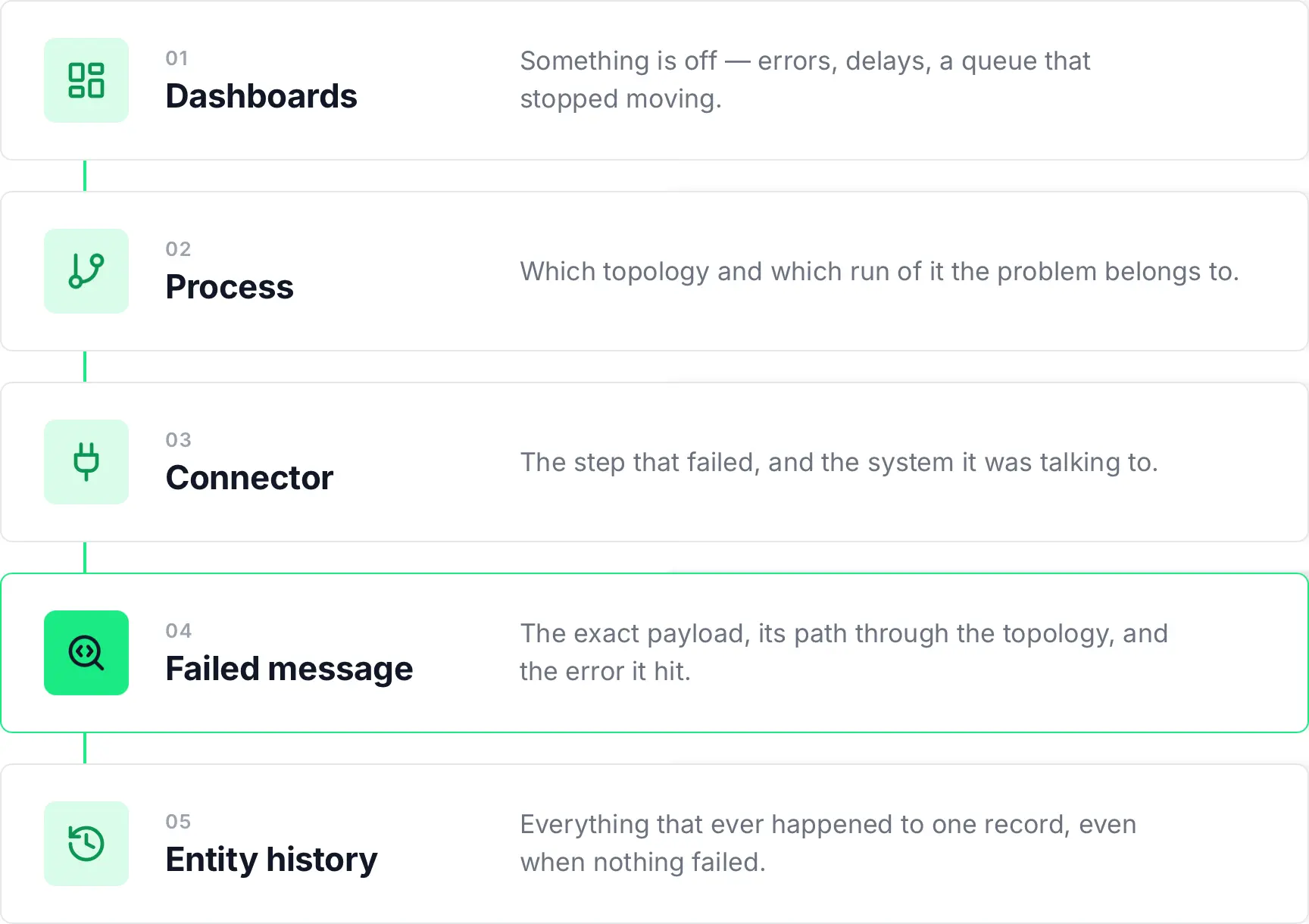
These views are connected, so you can start with a high-level signal and progressively drill down to the exact process, connector, request, or message.
Spot problems immediately with the process heatmap #
The process heatmap is usually the fastest place to start when monitoring integration health.
Each row represents a process topology and is divided into time slots. Every slot shows how many processes ran during that interval. If any of them failed, the slot is highlighted as an error.
This makes failures visible without searching through individual processes or logs.
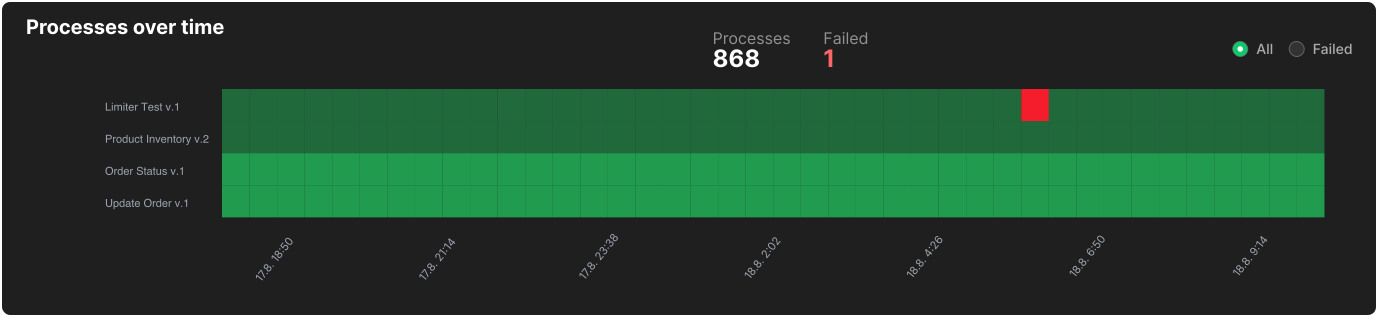
The process heatmap makes failed execution periods visible at a glance.
Clicking a time slot opens the processes that ran during that interval, including their status. From there, you can continue directly to the individual process that needs investigation.
The dashboards support different time ranges and granularities, so the same view can be used to inspect recent incidents or identify patterns over longer periods.
Drill down to the exact point of failure #
The process detail is a sidebar that shows everything about a specific topology run.
It lists the connectors the run used together with their statistics, the connectors' error logs, and the messages that were not delivered.
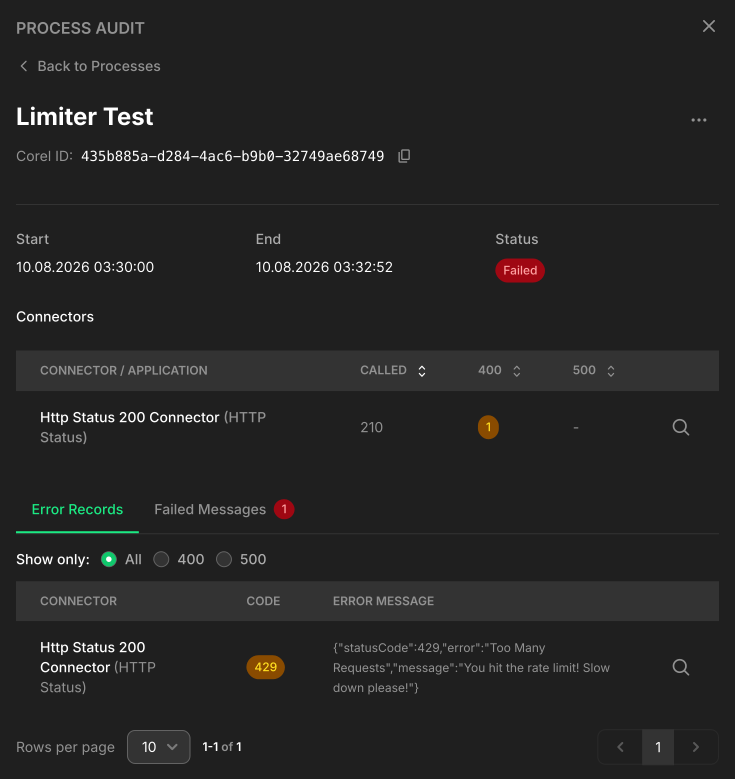
Drill down from a failed time slot to the exact process and node where the problem occurred.
At connector level, Orchesty exposes the communication history and logs needed to understand what happened at the system boundary.
This helps answer questions such as:
- Which external service was called?
- Which connector made the request?
- When was it called?
- Did the remote system return an error?
- Which messages were affected?
This is especially valuable when several systems participate in the same process. The integration layer provides a neutral view of the communication between them instead of forcing operators to guess which system caused the problem.
Inspect, fix, and replay failed messages #
When a message cannot be successfully processed, Orchesty can retain it for inspection instead of reducing the incident to a log entry.
The failed message detail gives you access to its operational headers, payload, and error information.
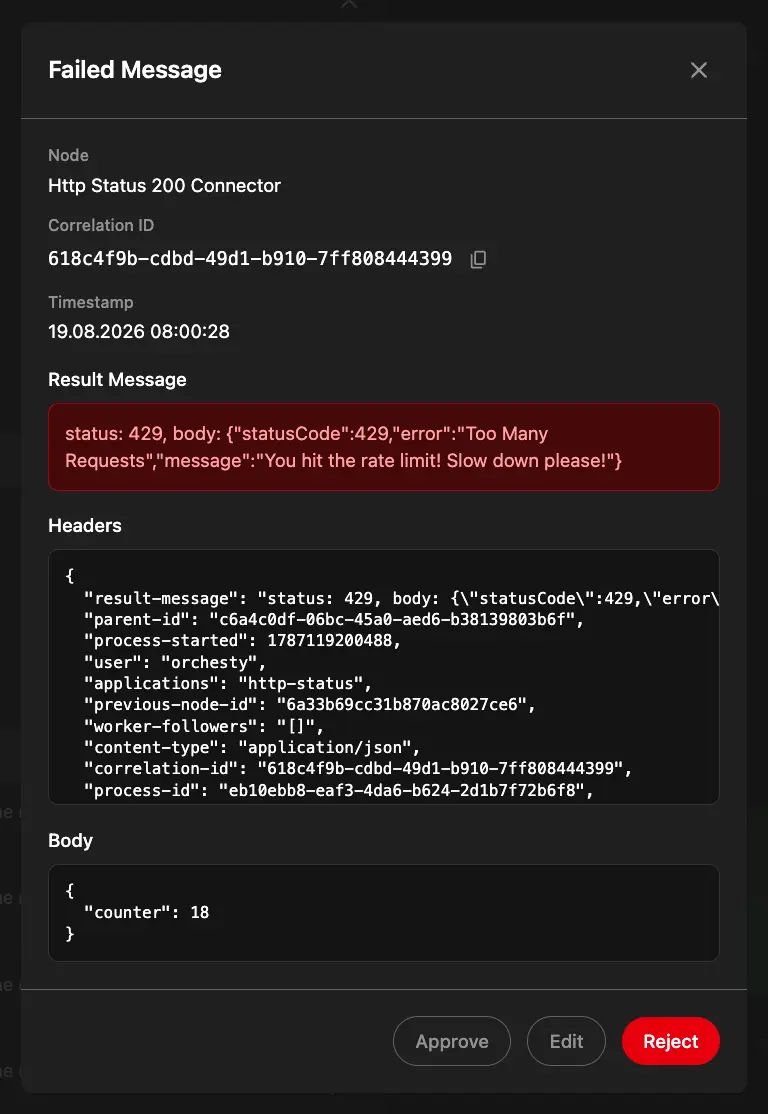
Inspect the message that failed, including the data and operational context available at the point of failure.
If the problem can be corrected, the message data can be edited and sent back into the process from the point where it failed.
There is no need to restart the complete integration flow or retrieve the source data again.
This makes failed-message handling useful not only for developers, but also for integration operations and support teams that need to resolve production incidents.
Determine whether the problem is isolated or systematic #
One failed request may simply be caused by an invalid payload.
Hundreds of similar failures during the same period usually indicate a wider problem.
Connector statistics provide this broader context.
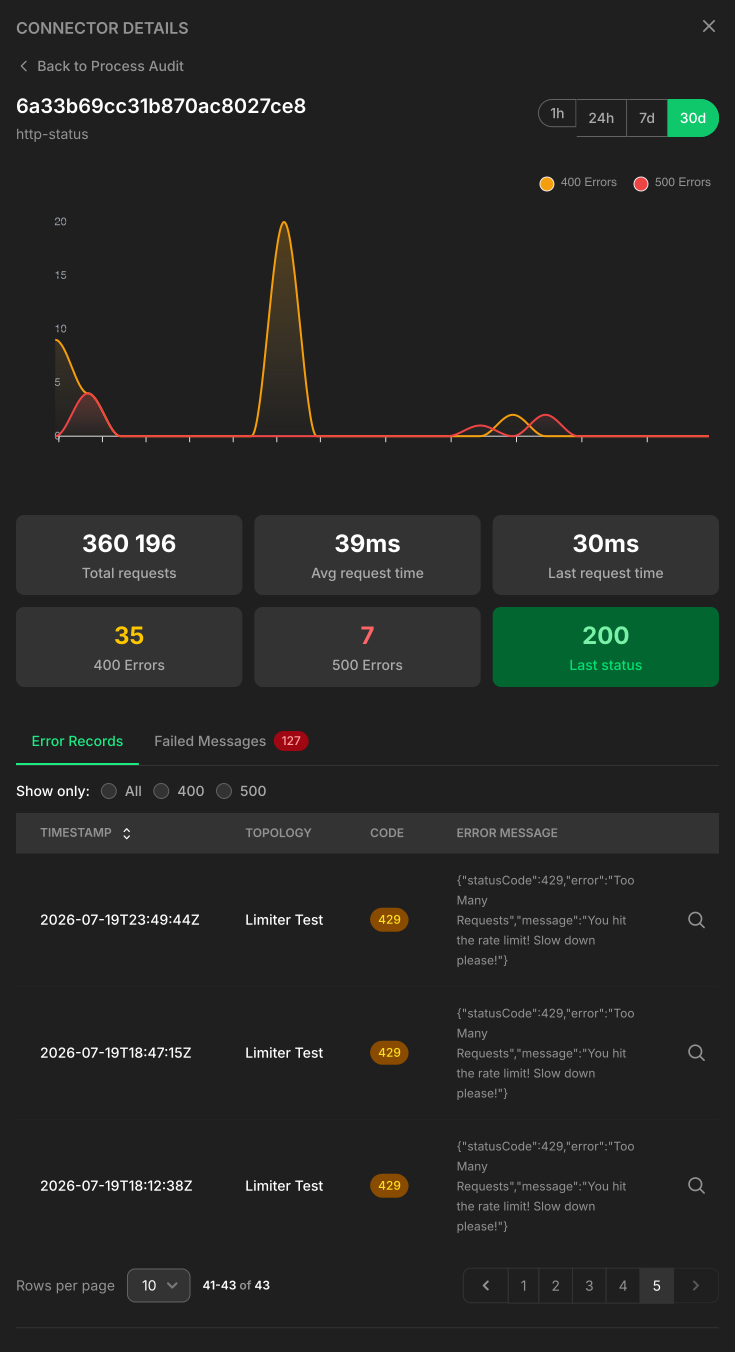
Connector-level statistics make it easier to distinguish isolated failures from systematic API problems.
You can compare successful and failed calls, inspect HTTP status groups, see when errors occurred, and open the related communication logs and failed messages.
For example, a cluster of 429 Too Many Requests responses strongly suggests that the target API is rejecting traffic because its rate limit is being exceeded.
In that case, the next place to investigate is the Limiter.
Monitor rate-limit backlogs #
Orchesty can enforce API rate limits at the orchestration layer.
When the configured rate is reached, excess messages wait and are released gradually instead of overwhelming the target API.
The Limiter view shows the current state of these queues.
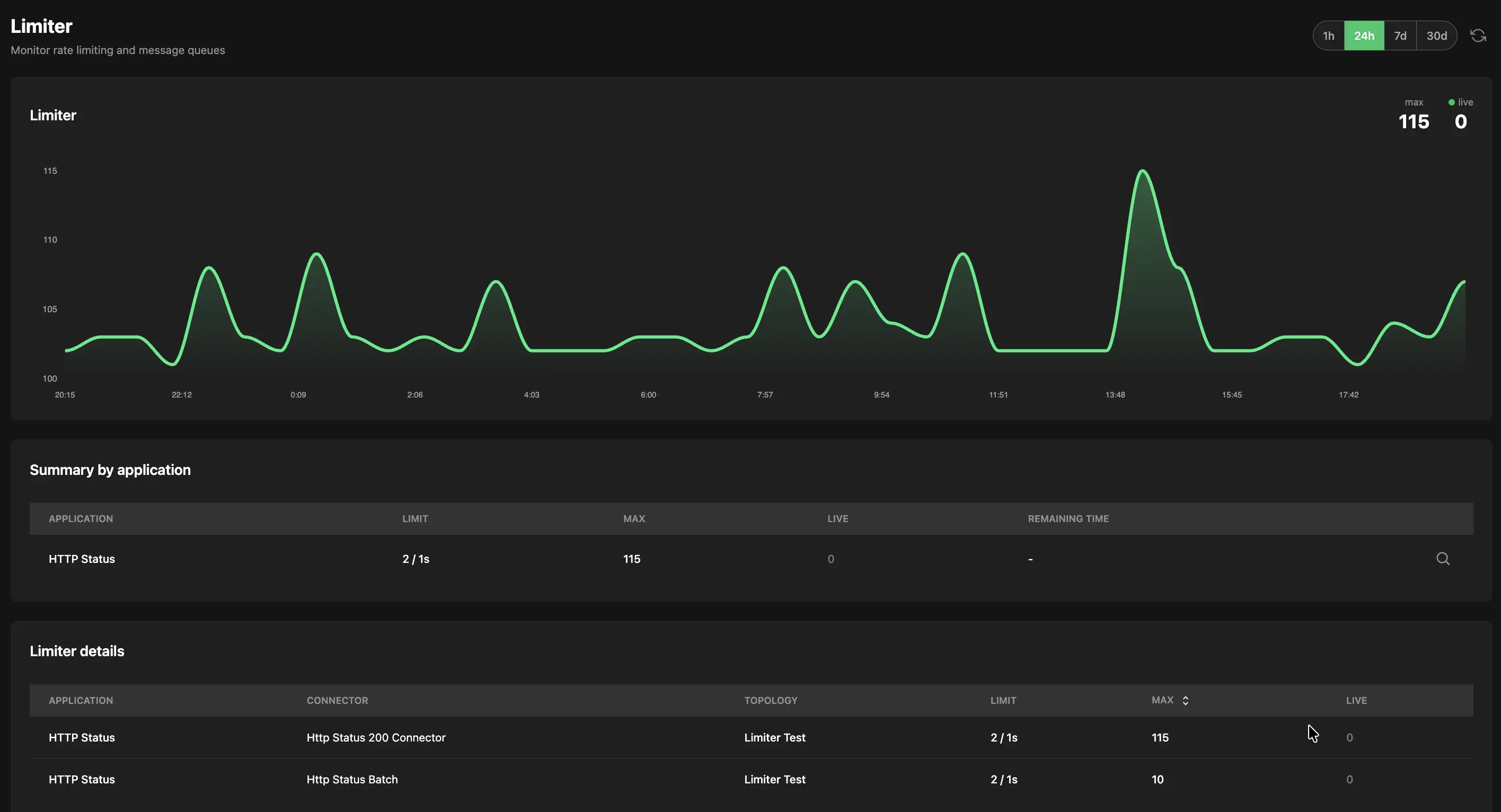
The Limiter shows whether rate-limited traffic is being processed fast enough or whether a backlog is growing.
This becomes especially important when large volumes of data are being sent to services with restrictive API limits.
For each application, you can see how many messages are currently waiting and the approximate time needed to process the existing backlog.
If a runaway process, unexpected backfill, or traffic spike is feeding the queue faster than it can drain, operators can identify the affected processes and take action before the backlog grows further.
Learn more: Handle API rate limits with the Limiter
Look at the same runtime from different perspectives #
The process heatmap is only one way to observe an integration environment.
Orchesty also provides views organized around applications, connectors, topologies, and individual process runs.
Applications #
Application dashboards aggregate connector communication by the integrated service.
This is useful when the question is not "which process failed?" but rather:
"Is this external system currently having problems?"
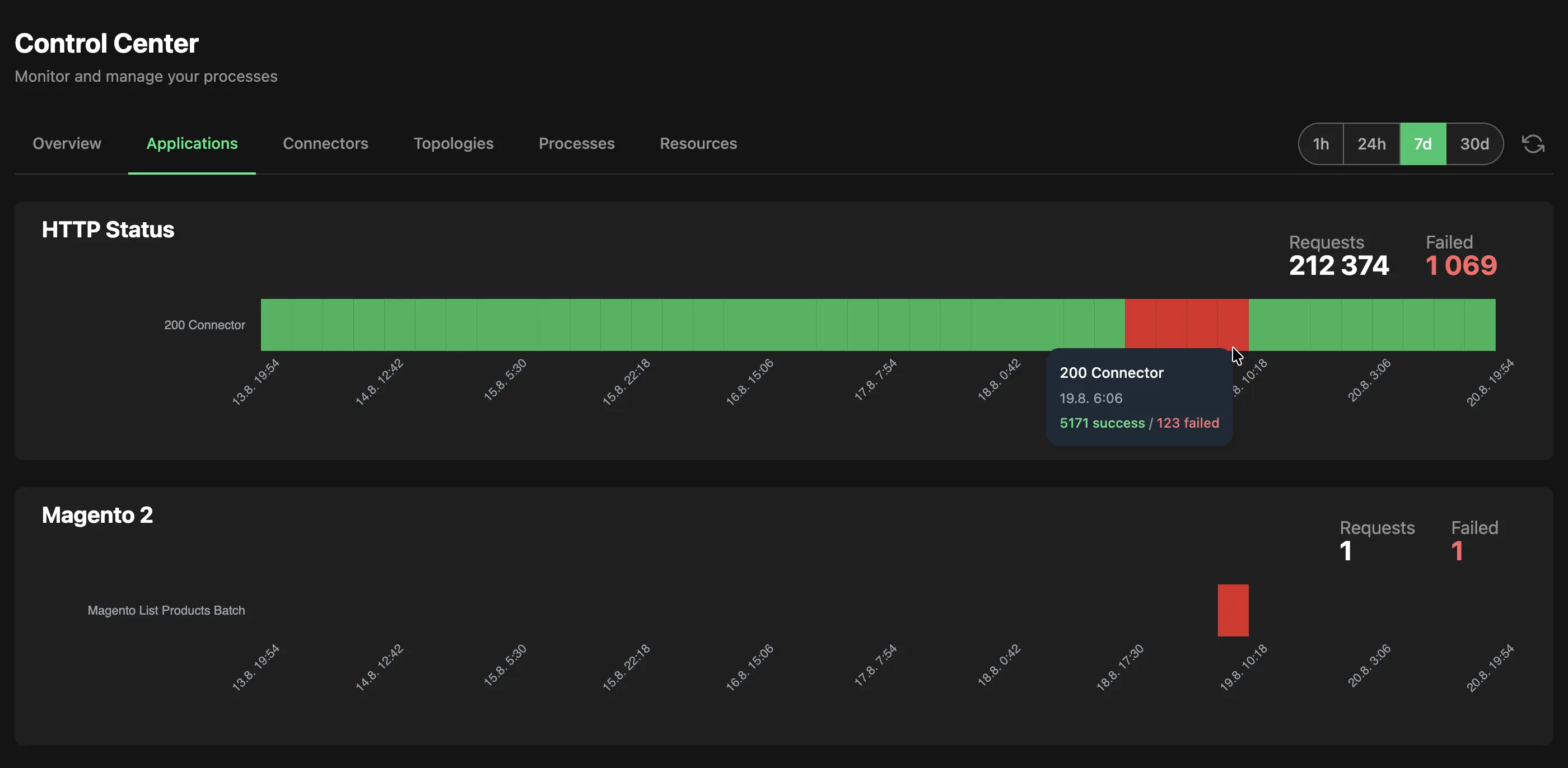
Application-level views reveal problems that may affect several different integrations at the same time.
A single application may be used by multiple connectors and multiple topologies. Looking at the application as a whole can therefore reveal an outage or degradation that is difficult to recognize from one process alone.
Connectors #
Connector views focus on individual API operations and their runtime statistics.
They help identify whether one particular operation is failing more often than others and provide access to its communication history and logs.
Topologies and processes #
Topology and process views approach the same runtime from the integration-flow perspective.
Use them when you already know which integration or execution you want to investigate.
Resources #
The Resources view is more operational. It shows the current consumption of key platform resources relative to the capacity available in your environment or cloud plan.
The important point is that these are not separate monitoring systems. They are different views of the same integration runtime.
Start from the perspective that matches your question and drill down from there.
From operational failures to business entities #
Dashboards naturally start with the integration infrastructure:
What failed?
But support questions often start somewhere else:
What happened to order 8841?
Was this product synchronized?
Which data reached the ERP?
A single business entity can move through multiple topologies and processes over time, even when none of those processes technically failed.
That is where Trace (Pro & Enterprise) adds another layer to Orchesty observability.
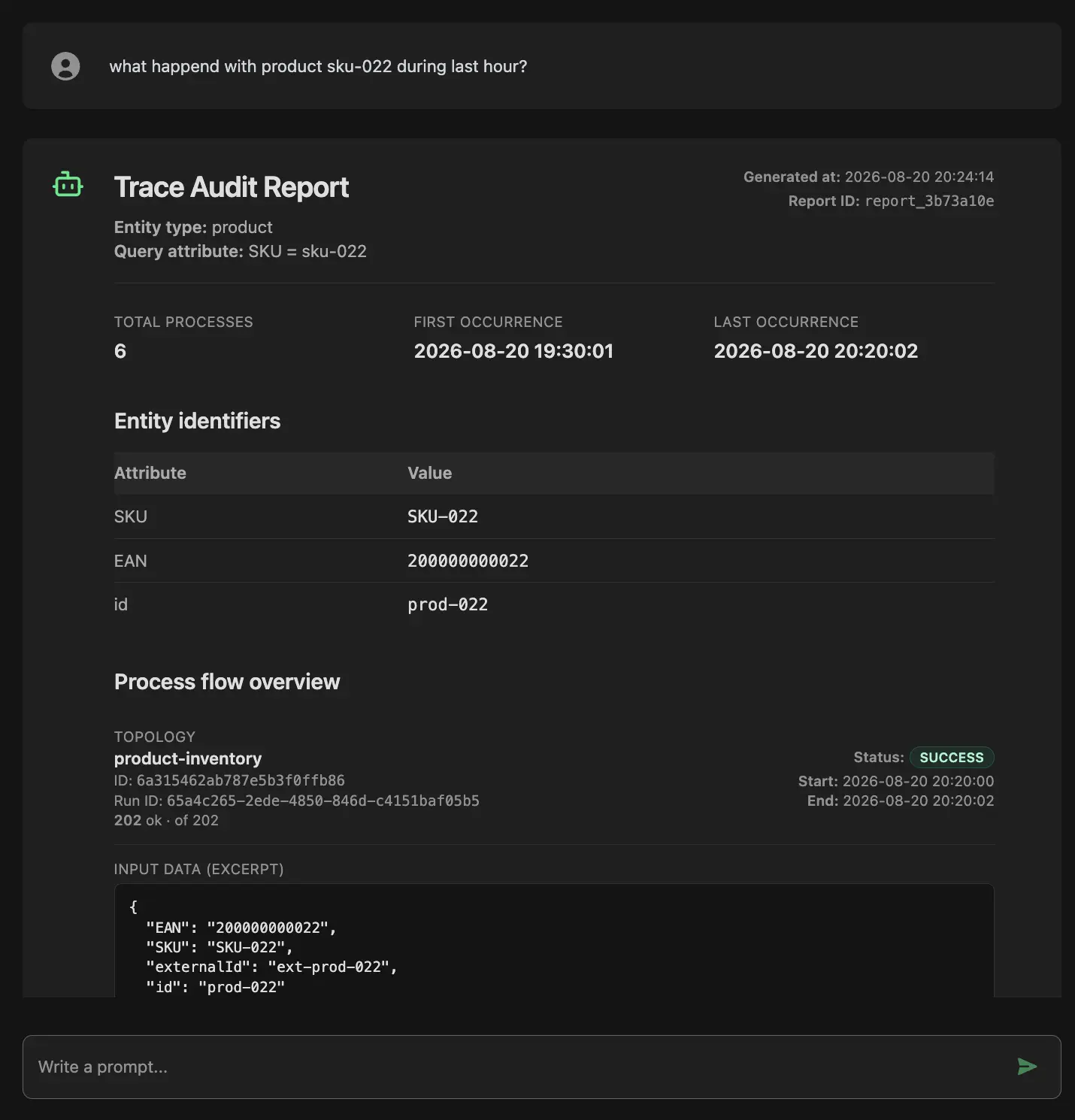
Trace lets you investigate the integration layer from the perspective of a business entity rather than a single process.
Trace can answer operational questions through a natural-language interface, but its key additional capability is entity auditing.
Instead of starting with a process ID, you can start with a business object such as an order, product, invoice, or customer.
Orchesty can then correlate related transfers across processes and topologies and show the available history of that entity, including data captured at selected audit checkpoints.
This is particularly useful for investigating data inconsistencies that do not cause technical errors.
A process may finish successfully while still delivering an unexpected price, outdated address, or incorrect product state. A traditional error dashboard has nothing to report because technically, nothing failed.
Entity auditing provides the history needed to determine where the data changed.
Search using business identifiers #
Entities can be associated with multiple searchable attributes.
For example, a product may be identifiable by an internal ID, SKU, or EAN.
This means an operator does not need to know the internal process or correlation ID before starting an investigation. Trace can use the identifiers that are already meaningful to the business.
The detailed setup — including entity tagging, searchable attributes, audit checkpoints, delivery statuses, retention, and security — is covered separately:
Data flow auditing with Trace (Pro & Enterprise)
Understand the operational model #
Orchesty dashboards are designed for operational visibility rather than as an unlimited event archive.
A few principles are useful to keep in mind.
Metrics are aggregated #
Dashboard metrics are aggregated into time slots. They are designed to show patterns, failures, volumes, and operational state efficiently.
For event-by-event investigation, use the underlying process, message, and connector information available through drill-down.
Different data belongs to different operational views #
Metrics, failed messages, limiter state, connector communication, and process data serve different purposes.
Orchesty connects these views so operators can move from a high-level symptom to the relevant detail without requiring everything to live in one monolithic record.
Historical investigation depends on retention #
Operational history and entity audits can only use records that are still available under the retention policy configured for the environment.
Retention should therefore reflect the period over which your team realistically needs to investigate incidents, support requests, or data inconsistencies.
Observability is part of the integration lifecycle #
The difficult part of integration development is rarely making the first API call work.
Production integrations have to survive API outages, invalid data, rate limits, changing systems, unexpected traffic, and support questions long after they were deployed.
Orchesty treats monitoring, recovery, and auditing as part of the integration platform itself.
The goal is simple:
When something goes wrong, you should be able to find the cause quickly.
And when nothing technically failed but someone asks what happened to a particular piece of data, you should still be able to find the answer.
Where to go next #
- Data flow auditing with Trace (Pro & Enterprise) — follow one business entity across processes and systems.
- Operational visibility — understand the monitoring and observability model of Orchesty.
- Rate limiting — learn how Orchesty controls traffic to rate-limited APIs.
- Topologies, processes, and messages — understand the runtime model behind process execution.
- Getting started with Orchesty — explore the platform hands-on using the demo worker.
Want to see it in your own environment?