Operational Visibility: Seeing Exactly What Your Integrations Did
How Orchesty's operational dashboards, process and application maps, failed-message workflows, and per-connector communication history give you full visibility into every process and every external call.
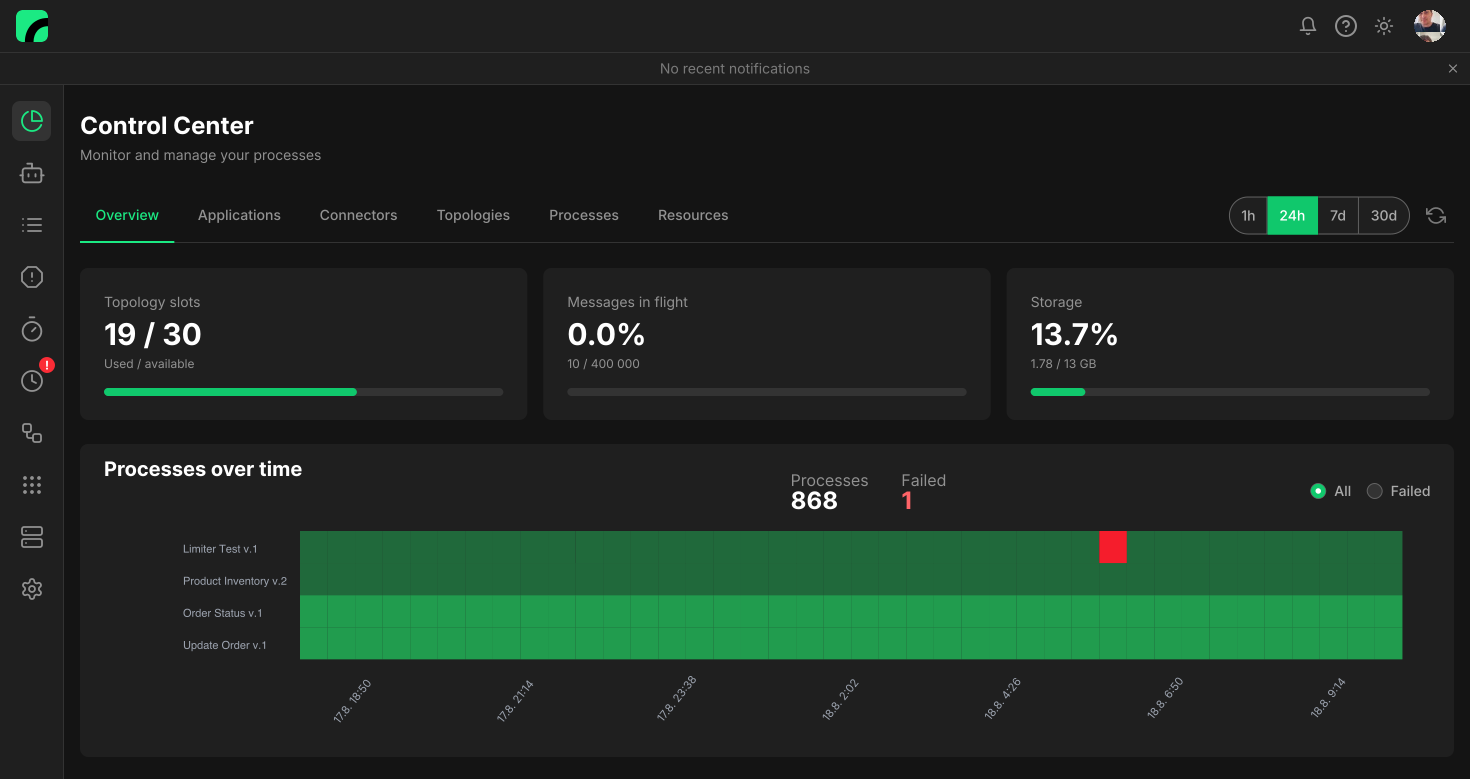
When integrations run mission-critical processes, running them is only half of the job. The other half is knowing exactly what happened: which messages flowed where, which calls succeeded, which failed, what each external service returned, and how a particular business entity moved through the integration estate over time. Orchesty is built around the assumption that this kind of visibility is not a "nice to have"; it's a prerequisite for trusting any platform with critical data.
1. How the Dashboards Actually Work #
Orchesty's dashboards are not a real-time stream of every event. Behind the scenes the platform collects metrics from every component — workers, connectors, the Limiter, the Trash, the process evaluator — on a one-minute cadence and aggregates them. The reason is volume: in production, processes flow far faster than any browser could repaint, and a single heavily loaded topology can produce hundreds of thousands of state transitions per minute. The useful unit is a time slot with a status, not the individual event.
What the platform does instead is layer the same data into views with progressively narrower scope. You start at the highest level ("is anything wrong?"), spot the slot or the application that looks abnormal, and click your way down to the exact failed message and its payload. Nothing has to be set up. The moment a topology starts running, the relevant data flows into the dashboards.
The cross-cutting glue is the correlation ID: there is no single monolithic record of a process. The metrics live in the connector store, the failures live in the Trash, the limiter state lives in the Limiter, and the per-step process evaluator joins them through correlation IDs when you drill in. That is what keeps writes fast even at high throughput, and what lets the platform present a coherent story when you read.
2. Topology Heatmap: Failures at a Glance #
Each topology has a heatmap that summarises everything that ran through it over a chosen window. Each cell represents a time slot for the topology, not a single process; the cell's colour reflects the worst outcome in that slot — a single failed process is enough to mark the slot red.
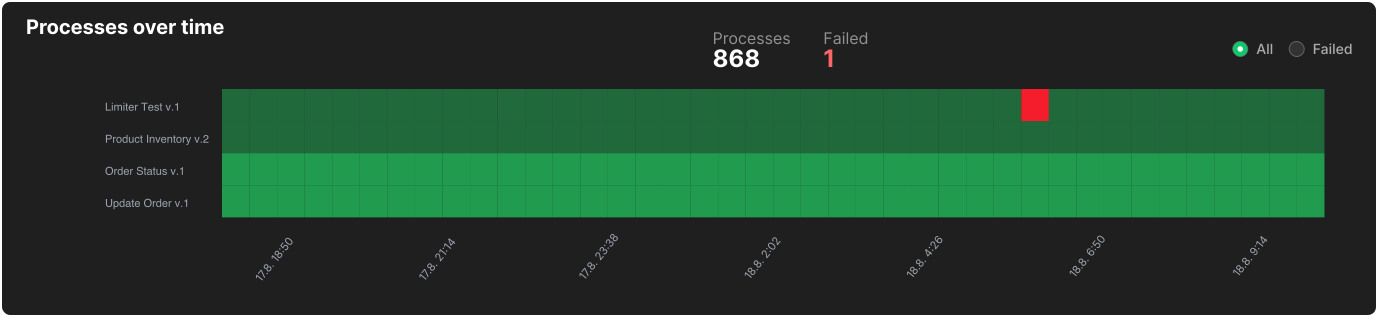
That is what makes triage fast. A red streak on the heatmap tells you when failures started and roughly how widespread they were, without you having to read a log line. From there:
- Click any slot to expand it into the list of processes that ran inside, with a filter for failed only. Each entry shows the originating node and the error message the connector returned.
- Click a single failed process to open the process detail: which nodes were visited, which failed, a time chart of when the errors occurred, the connector error messages, and the messages that ended up in the Trash.
- From the process detail, jump straight to the corresponding Trash entries to act on the failed messages.
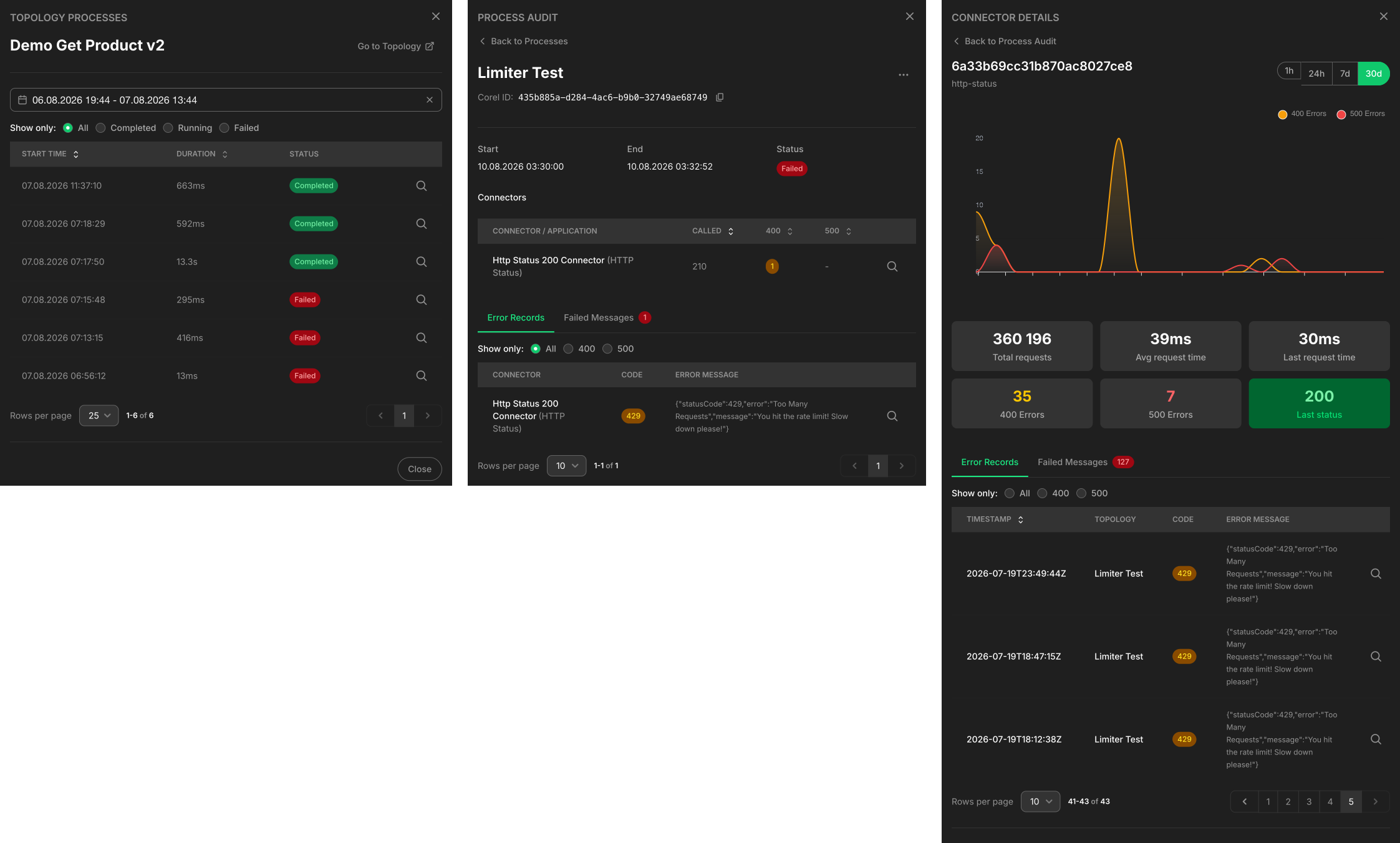
The drill-down sequence — heatmap → slot → process → Trash — is the same workflow operators use for every incident.
3. Application Heatmap: Spotting External Outages #
Beyond per-topology heatmaps, Orchesty produces an application-level heatmap that groups connectors by the integrated application they call. Each cell shows the recent state of one connector against one upstream service.
When an entire row turns red, the integration is fine — the upstream is down. You can confirm in seconds whether an outage is yours, theirs, or somewhere in between, before opening a support ticket on either side. A click on a red cell jumps straight to the reason for the failed call: HTTP status, connector error, the time it happened. When operations comes asking "why isn't process X running?", the application heatmap is usually the fastest way to answer.
The same view feeds the connector and topology overview pages, which add traffic-light status indicators for each entity (current = the most recent status; the entity detail then shows a short history graph).
4. Per-Connector Communication History #
For every connector, the platform keeps a queryable history of its communication with the outside world. Technically these records live in the process logs (per-call entry/exit) — there is no separate dedicated store — and you reach them filtered by time, endpoint, status, or correlation ID directly from the connector or process detail.
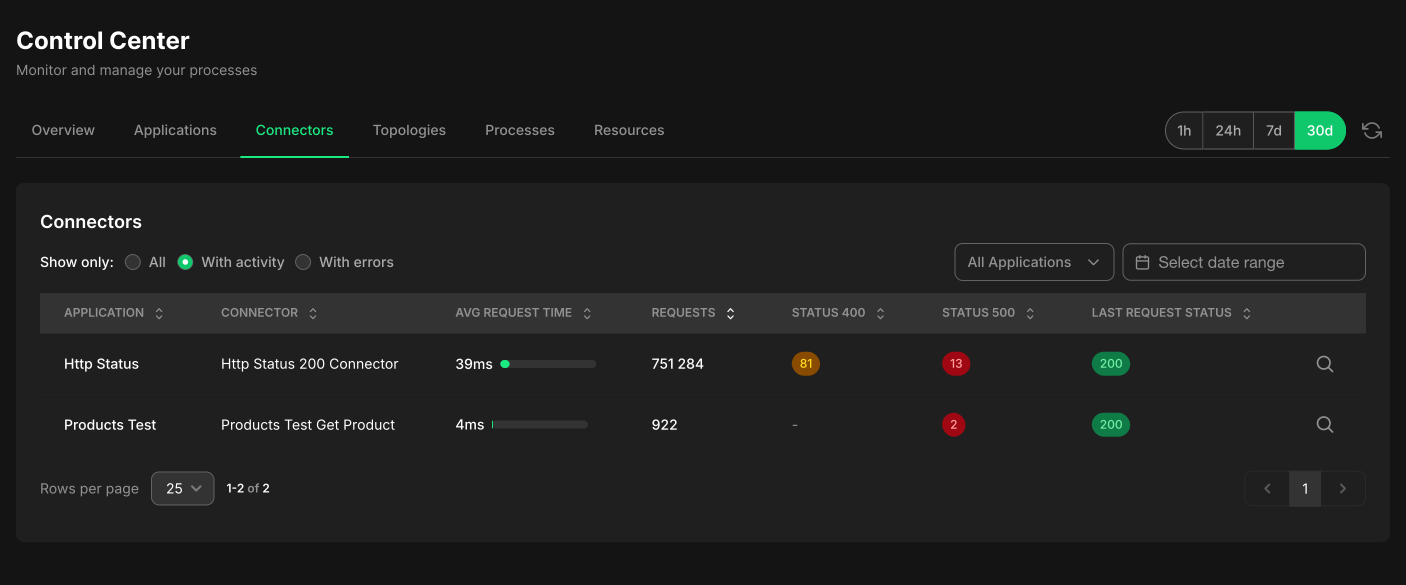
This is invaluable when:
- A partner claims they didn't receive a message and you can show the exact call and their exact response.
- An API silently changes its behaviour and you can compare last week's responses to this week's.
- A new release of your integration starts producing different outbound payloads and you can compare diffs.
You are working from the actual on-the-wire history, not reconstructed inference. The horizon over which you can look back, however, is bound by the log retention configured for your instance — the same retention that determines how far the Trace feature (Pro & Enterprise) can look back too.
5. Trash Inbox: Approve, Edit, Reject #
A failed message in Orchesty is the same thing as a failed process, and the Trash is where it ends up after retries are exhausted. The platform exposes Trash entries as first-class objects, not as lines hidden in a log file. From the Admin UI an operator can act on them without writing code:
- Inspect the full payload, the failing node, and the exact error.
- Edit the payload if the failure was caused by bad data.
- Approve to re-inject the message — re-injection happens at the failed step, not at the start of the topology, so upstream side effects don't repeat.
- Reject if the message is no longer relevant.
- Bulk-act on a group of related failures from the same incident in one operation.
- Get notified the moment a process fails. Notifications are pushed into the channels your team already uses (email, Slack, webhooks) and carry enough context to act on directly: a link to the failed process, the failing node, and the originating payload.
Process-failure notifications are the primary operational signal Orchesty pushes to your team. They turn failures from something you have to go looking for into something the platform brings to your attention.
Runaway failure protection #
A common stress case is a long batch hitting an upstream service that has gone down: thousands of identical failures would otherwise pile up in Trash, each one telling the team the same thing. The platform guards against that. When the same step keeps failing the same way inside one process run, the first batch of identical entries is preserved (enough to diagnose), further duplicates stop being persisted, and a single notification fires the moment the guard kicks in. The intended response is to rerun the affected process once the upstream is back, not to wade through duplicates of the same problem.
6. Limiter View: When the Bottleneck Is Upstream #
Many integration incidents are not "your code failed" but "the upstream API is the bottleneck and the platform's rate limiter is doing its job — but the queue keeps growing." The Limiter view exists for exactly that case, and is its own observability surface alongside the heatmaps.
For each integrated application that has a rate limit configured, the Limiter view shows:
- The number of messages currently queued waiting for a token.
- The current limit configuration.
- A computed time to drain at the configured rate — "Application XY: 18,400 messages queued, current ETA 2.5h".
- A breakdown of which topologies are contributing to the queue.
When the queue is the symptom of an upstream incident or a runaway producer, operators can terminate specific processes — or every process of a topology that is feeding the queue — directly from this view. The Limiter then drains and the unrelated traffic behind it gets its turn.
This is the view to watch on days when you push large datasets through systems with strict per-minute quotas, and the one to open first when "everything is slow" calls come in.
7. Resource Health Warnings #
Beyond process failures, Orchesty proactively notifies you about one other class of event: when an instance gets close to limits that could cause data loss or process crashes. This covers situations where waiting for a dashboard to be checked would be too late — for example channel capacity nearing its ceiling, persistent storage approaching saturation, or compute pressure that would start dropping work.
These warnings are intentionally narrow. They exist to give you time to react (raise a tier, scale out, or pause an upstream feed) before anything is actually lost. Other operational signals stay where they belong: on the dashboards and heatmaps described above.
Entity-Level Audit with Trace (Pro & Enterprise)
The Trace capability reconstructs the complete journey of a single business entity (a product, an order, an invoice) across every topology that ever touched it: every node it passed through, every input and output payload, every timestamp. You define how an entity is identified (by ID, SKU, email, invoice number, etc.) and Trace assembles a single coherent report from the platform's process logs, with a real delivery status badge at every boundary call.
An AI-assisted lookup that lets you ask for these reports in plain language ("show me everything that happened to the product with SKU ABC-123 last quarter") is in finishing; the audit data and the per-entity timeline UI are already there.
History horizon. Trace can only look as far back as your log retention policy allows. Holding an unbounded multi-year audit trail at the per-message level is not currently sustainable, so reports cover the configured retention window (typically days to weeks depending on tier and instance). Plan retention to match the audit horizon you actually need.
See Trace auditing for the concept overview and Operations: Trace auditing for the developer guide.
8. The Result: Confidence in Production #
Put together, the heatmaps, drill-downs, Trash actions, Limiter view, connector history, and resource warnings give engineering, operations, and business stakeholders a clear, evidence-based view of what the integration platform is doing at any moment — without overpromising what the platform records on its own. For the operational workflows that tie these views together (incident triage, draining a stuck Limiter queue, gathering vendor evidence), see Observability in practice.
Where next #
- Hub overview: Five Core Principles
- What's being observed: Topologies
- The components running underneath: Workers & Components
- The developer perspective: Working with Orchesty